
As you can see, since last week, I did not publish new post because I have moved to Digital Ocean after a trial month. In the last few years I’ve used a lot of hosting providers. If you aren’t aware, I’ve been with HostGator for years, but after the last few months, I’ve been noticing their VPS services were slow. As my previous hosting contract was coming to an end and my friend has recommended Digital Ocean, I decided to take a look and was instantly surprised. DigitalOcean was just what I was looking for. Until now I’ve never actually found any that have been able to satisfy my needs at the right price. In this post, I’m going to let you guys know why I switched and why Digital Ocean is my host of choice right now.
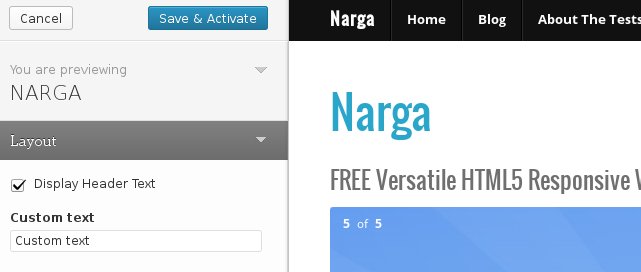
Comprehensive Guide to make WordPress Theme Options with Customization API
After install a high quality WordPress theme, you find it has a Theme Option page. Per theme, developer will make their own Option page (functions, features, layout …) so it can not be compatible with your theme or others. Let’s me know what’s you feel when changing to new WordPress theme then you start learning again to re-configure WordPress and you’ll see why that’s a bad thing for WordPress publishers. That’s why I always disliked about theme settings pages was how vastly different they would get.
The Theme Customizer was introduced since WordPress version 3.4 then it’s become a relatively new way of WordPress Themes to provide you with options. It allows for an editing environment where theme options can be tried by the administrator before being applied to the live site. Currently, I’m using WordPress Theme Customizer as my default theme options instead build my own or using other theme options way.
In this tutorial, we will look at exactly how this feature can be added to a theme and I show you how to create your own classes to extend the controls to make your own Customizer Custom Controls, since not all fields and requests are in the core already. You can access existing solutions of the community or create your own classes.

Navigate & Control Your WordPress Dashboard with Keyboard Shortcuts
Today, my wireless mouse’s battery empty, but I found that I left backup battery at home. So I must find the way to control WordPress Dashboard with keyboard instead mouse. I printed all the keyboard shortcuts and start becoming familiar with keyboard shortcuts. Using keyboard shortcuts on WordPress, my hands don’t have to leave the keyboard to use the mouse and click on the icons. If I need to make a text bold/italics, or insert a link/image or wrap a text in quotes all I need to do is perform the keyboard shortcut. Not only does this enable me to save time but it also helps me to blog more efficiently.
Now, without wasting much time I’ll go to the list of shortcuts available from your WordPress dashboard. Of course, I’m not talking about Ctrl+C and Ctrl+V, and other basic stuff. I’m talking about WordPress specific shortcuts. And there’s a truly wide selection of those.
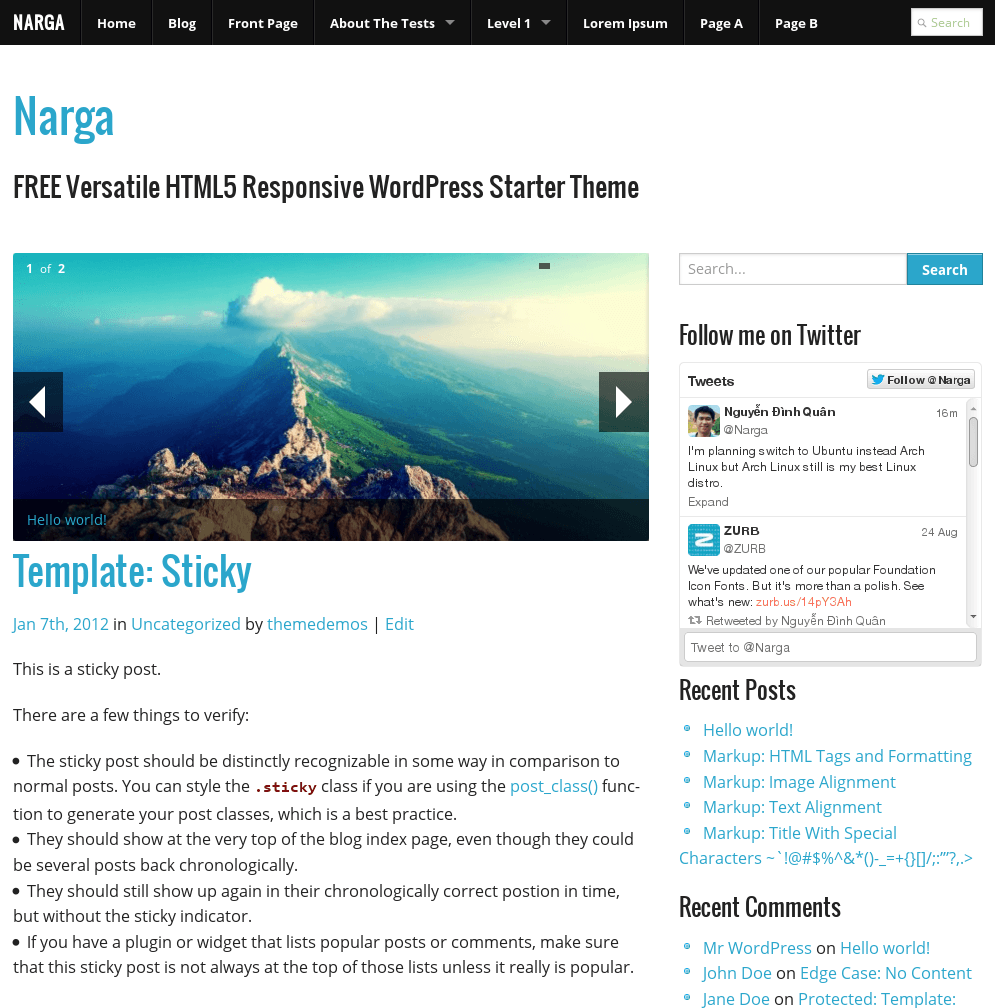
NARGA – FREE Versatile HTML5 Responsive WordPress Starter Theme
I’m happy to announce my first HTML5 Responsive WordPress Starter Theme named NARGA using on ZURB’s Foundation CSS, a powerful tool for building prototypes on any kind of devices. NARGA supports child-theme so it’ll help you do amazing things faster & easier than ever before. It is a magazine theme with minimalistic style. Suitable for any niche, especially for news or magazine sites. Along with the elegant design the theme is easily customizable with numerous theme options through Theme Customization.
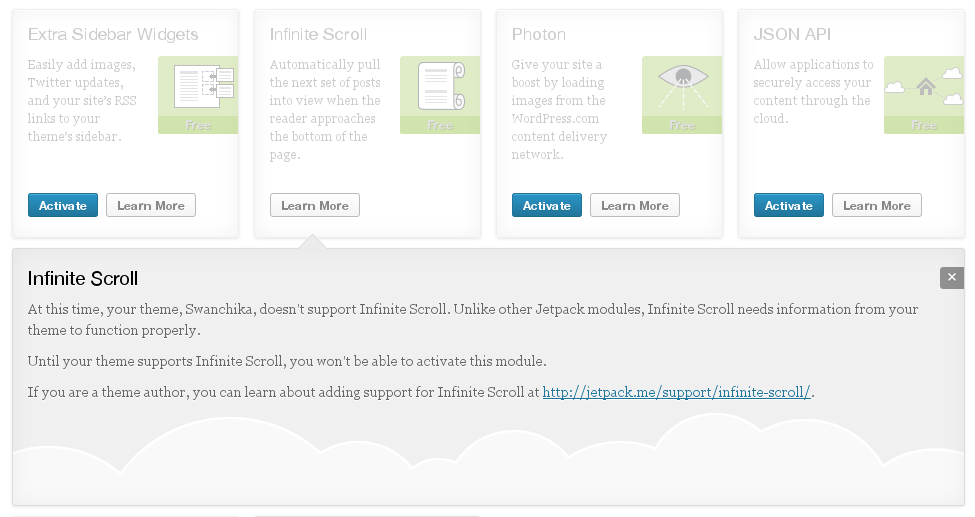
How to make your theme support Jetpack’s Infinite Scroll feature
As you known, JetPack is one of most popular installed plugins. I’ve recommended JetPack as must active plugins after start new WordPress blog. The Infinite Scroll module in JetPack detecting when a user gets to the bottom of a page that contains a list of posts and automatically checks for and loads in the next lot of posts instead pagination. Unlike many of the modules already in Jetpack, Infinite Scroll only works with themes that support it.
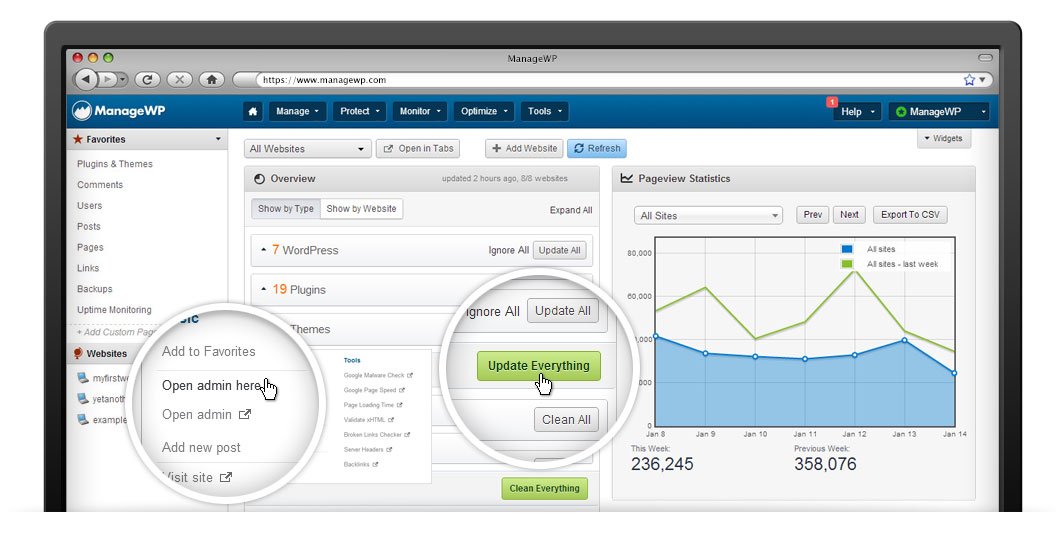
ManageWP – Manage Your WordPress Networks in One Dashboard
I’m managing my WordPress networks with default WordPress Dashboard in dozens of Firefox’s pined tabs. I’ve never tried looking for better solution to manage my networks until I use ManageWP service. Since June 2013, I’ve got Professional Plan of ManageWP.COM as a gift and start using it after a month because it’s required a plugins and a ManageWP’s account.
Trust me, after using it, you will freaking love ManageWP like me because it consolidates multiple Admin dashboards into one easy-to-use. Below I’ll show you about most expensive features and begin effectively managing your WordPress Networks like never before.
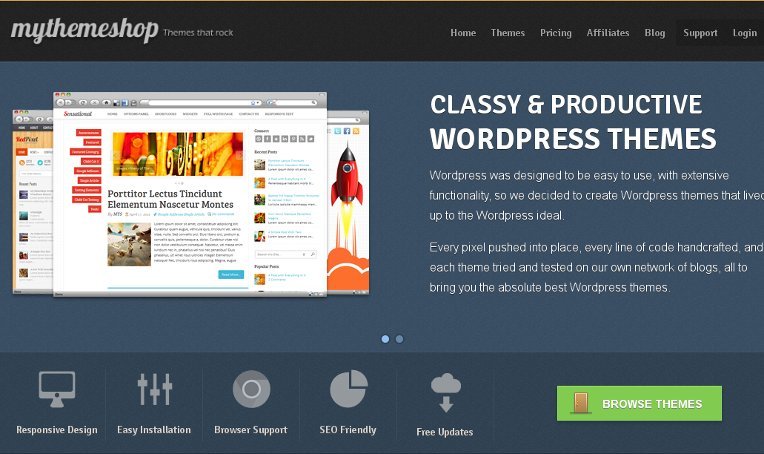
MyThemeShop Membership Discount: Just $9
They recently passed the 40,000 members so they decided to host a special offer for anyone who joins them. As you see, become a member of MyThemeShop cost you $99 sign-up fee then $9 per month but it’s worth to buy. Today I give you a exclusive coupon that give you save $99 signup fee, just $9 per months if you decided become MyThemeShop’s premium member.

Top Best FeedBurner Alternative Services after its shutdown
Why are we looking for Best FeedBurner Alternative Services?
Since July 1st, 2013 Google Reader has been shutted down. What’s about FeedBurner? Will FeedBurner shuting down after Google Reader is gone? If you run a blog there are a lot of things to know about and consider doing with this change coming up that you’ll want to take care of in the next couple months.
After your FeedBurner feed is not working anymore, you’re not alone and you basically have two choices – switch to your blog platform’s atom feed for free (no analytics), or switch to the alternative services like: Feedblitz, FeedPress, FeedCat …
Prevent Hidden Causes by Clean up WordPress Database Bloat Issues
After running your WordPress website more than 2 years, you will find your database size bigger than your thoughts. Over time WordPress saves a ton of information to its database, which can become bloated with unnecessary values, thus slowing down your site and putting more stress on your server setup. WordPress database bloat may be the hidden cause of a number of issues your blog may be experiencing!
Just like anything, your WordPress blog also needs some maintenance, servicing and cleaning every now and then to keep it running smoothly, speedily and effectively. In this post we’ll look at 10 ways you can give your WordPress install a spring clean to trim the fat and put everything in its place. So then, it helps you prevent hidden causes may occurring to your WordPress website.
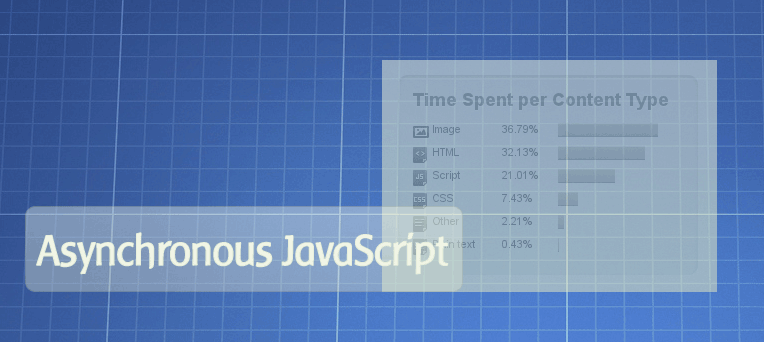
Asynchronously Javascript Loading for Social Button
Social buttons are most common methods to sharing your post to social networks like Facebook, Twitter, Google+. But after added your favourite social network script, be it like buttons or twitter widgets to your site or blog and then you notice that the load time of you page went drastically down. What happened?
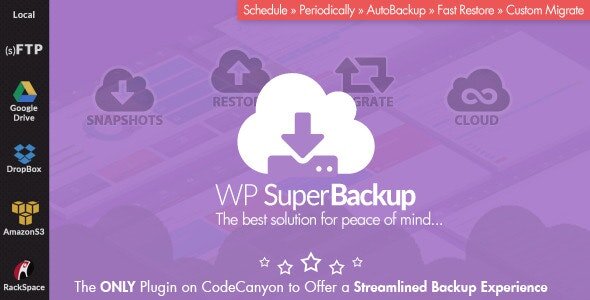
How to Schedule Backup WordPress Database
Do a schedule backups of your WordPress MySQL database is the most important thing to do when running your own WordPress website, it is required to restore your blog, it needs to urgently migrate to another host or restore your database from a crashed server.
From official WordPress guidline – The WordPress Codex, you will find some excellent ways to back up database using phpMyAdmin, MySQL commands, and MySQL administrator. But are you willing to backup your site daily, weekly, monthly and everyday of the year by yourself? There are too many methods, plugins, tools which help you done this job by automatically back up your MySQL database for you and send it across to a safe storage space such that the latest backup is there whenever you need it, wherever you need to restore database from across the world.
There are several ways to backup MySQL data. In this article I will show you how to backup your databases using different methods, we will also learn how to achieve an automatic backup solution to make the process easier, including the backup of your database to a file, another server, and even a compressed gzip file and send it to your email.